Font Generator – Copy and Paste Stylish Text
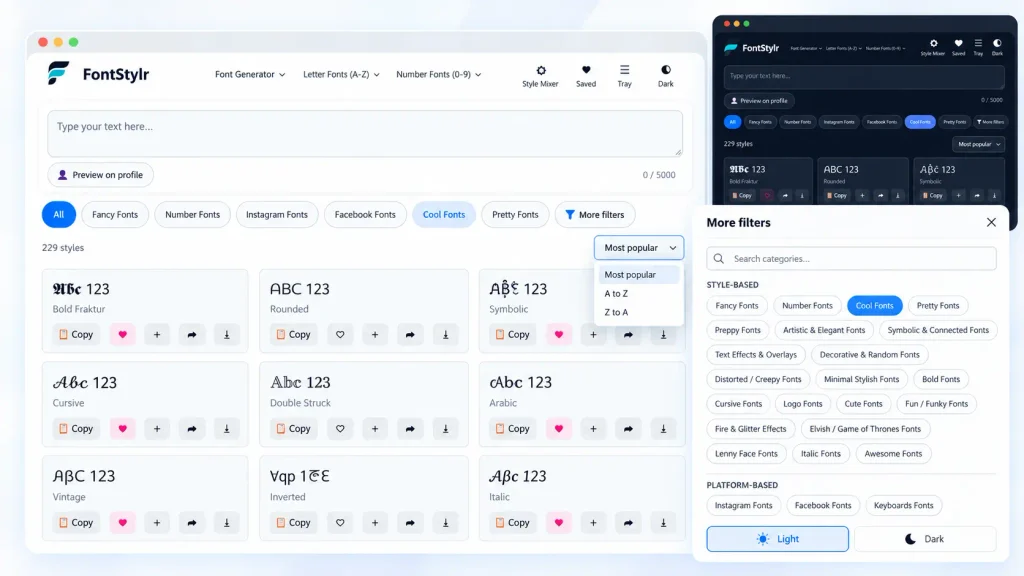
Create stylish text online with FontStylr’s free font generator. Explore unique Unicode styles, mix and match individual letters, and find the perfect look for your bios, usernames, and captions. Copy, share, or download your favorite designs as PNG images—no signup required.

Preview on profile
Mockup only — not connected to your real account.
Style-based
Platform-based
No styles to show yet.
Try a different category, or clear the filters.
Explore Popular Font Styles
Create stylish text for your bios, usernames, captions, and messages by exploring FontStylr’s font categories. Choose from bold, italic, cursive, cute, decorative, and other text styles, then open a category to find and copy the look you prefer.
Social Media Fonts
Explore stylish text for social media bios, captions, profiles, and posts. Choose a platform below to discover text styles you can copy and paste into compatible fields.
How to Use the Font Generator
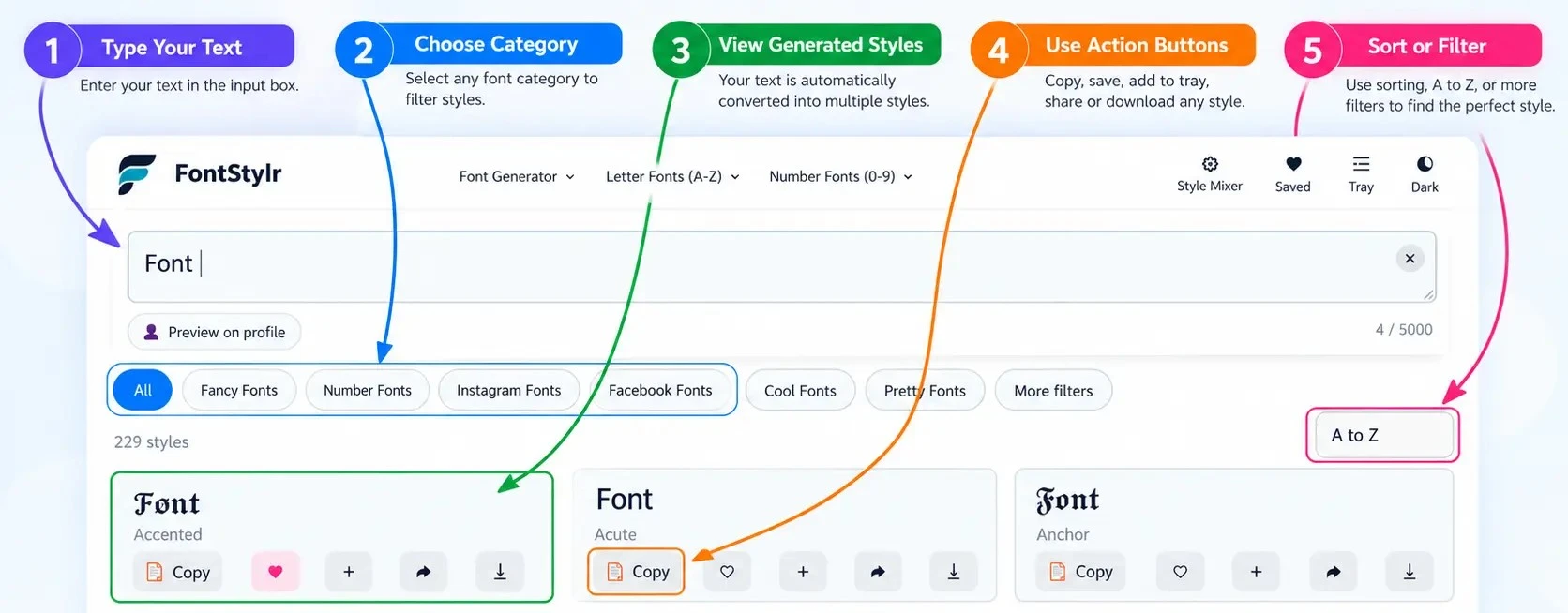
Follow these simple steps to create and copy stylish text in seconds.
Enter your text
Type or paste your text into the generator to get started.
Browse the styles
Explore different text styles and find the look you like best.
Customize letters
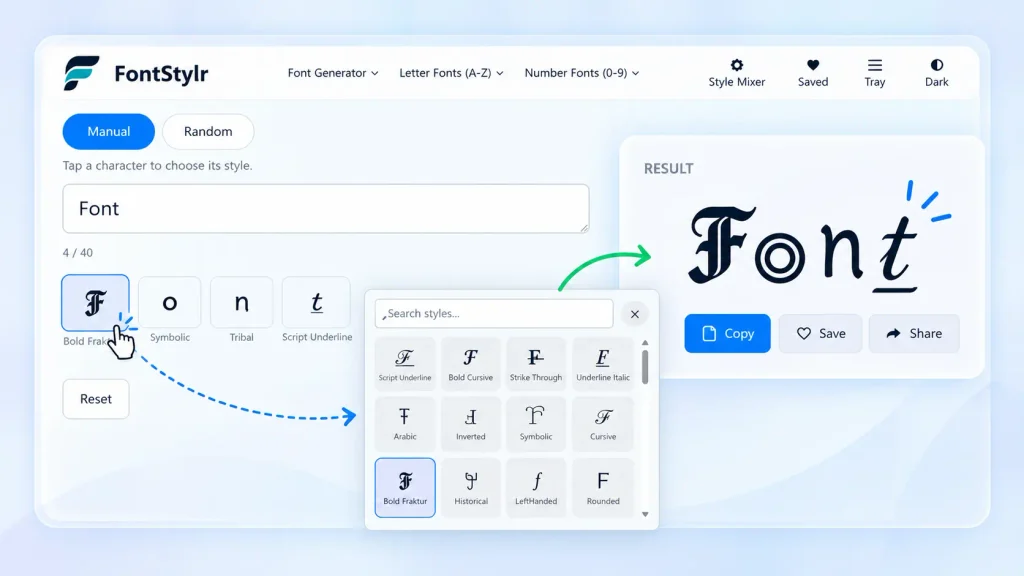
Use the Font Mixer to style individual uppercase and lowercase letters.
Compare options
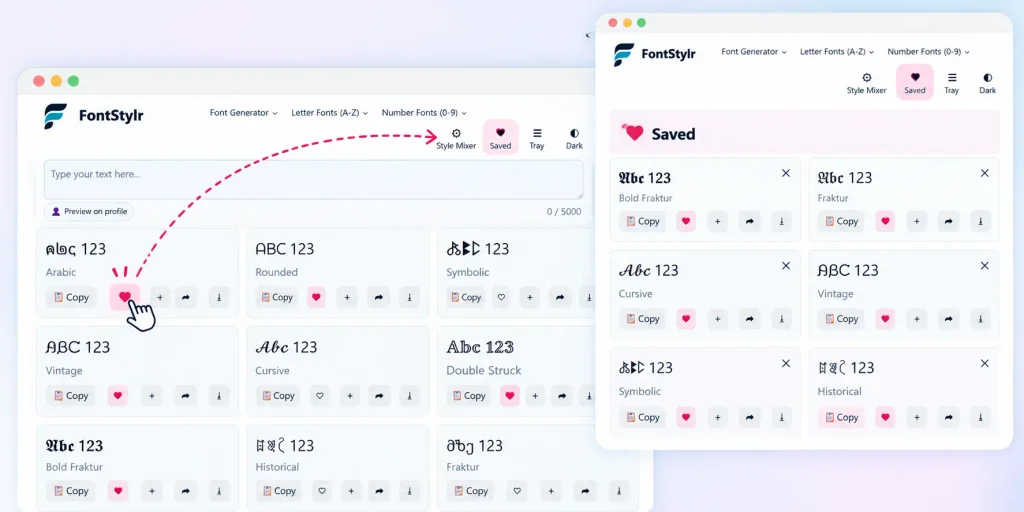
Save your favorite styles or add multiple options to your Style Tray.
Copy or export
Copy your stylish text, share your result, or download it as a PNG image.
Preview on Social Profile
Use the Live Profile Preview to see how your chosen style looks on Social Profile.
How Does a Font Generator Work?
FontStylr transforms regular text into different styles using Unicode characters that resemble bold, italic, cursive, and decorative lettering. Unlike traditional fonts, these styles use special text characters rather than separate font files, allowing you to copy and paste them into compatible apps and websites.
Character support varies across devices and platforms, so some styles may appear differently or may not display correctly everywhere.
Customize and Compare Text with FontStylr
FontStylr offers tools to help you personalize your text, compare different styles, and keep track of the results you like.
Font Mixer
Choose a style for each character to create your own unique text combination. Use Manual Mode to select styles for individual uppercase and lowercase letters, or switch to Random Mode to generate combinations automatically. Experiment with different lettering styles to create text that matches your preferred look.
Saved Styles
Save your favorite text styles by selecting the heart icon, then revisit them in the Saved section whenever you need them. FontStylr stores your saved styles in your browser, making it easy to return to your preferred options without searching again. Your saved styles may not be available on other devices or browsers.
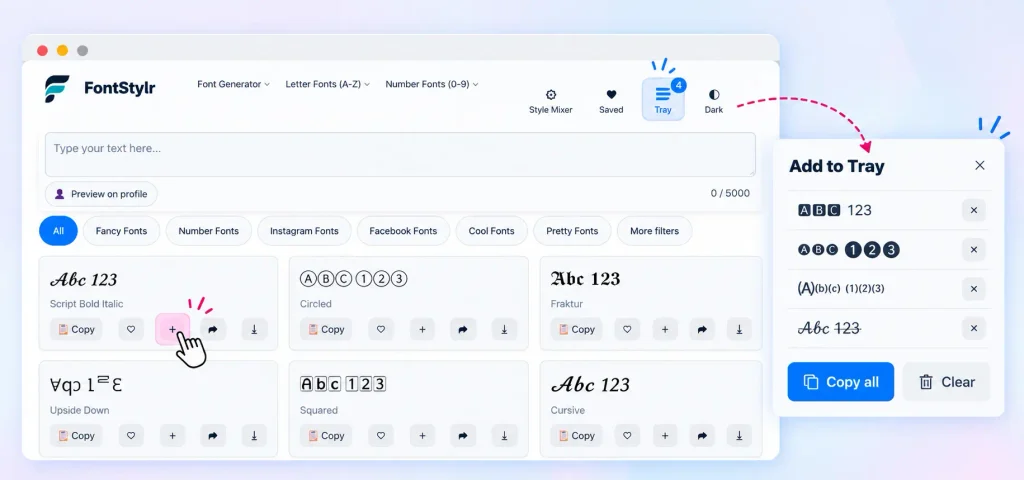
Style Tray
Add multiple text styles to your Style Tray to compare your favorite options side by side in one place. Review different lettering styles, copy individual selections, or copy all the styles in your tray together. This makes it easier to compare alternatives and choose the text style that best fits your needs.
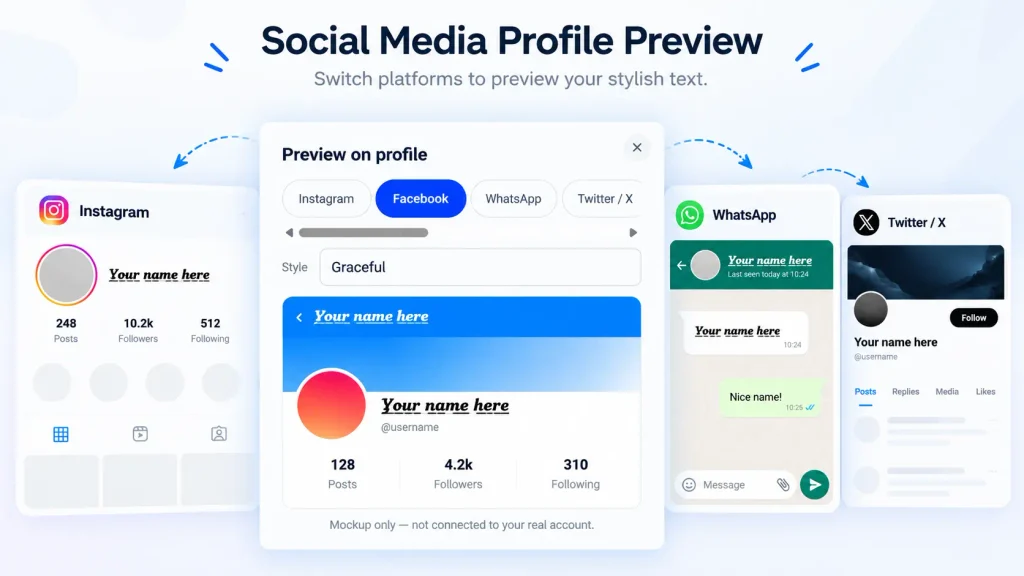
Live Social Profile Preview
Preview your generated text in a social media profile-style layout before choosing a final style. Switch between the available platform previews, including Instagram, Facebook, X, and TikTok, to see how your text looks in different profile layouts. This helps you compare the appearance of your chosen text before copying it for your profile or bio.
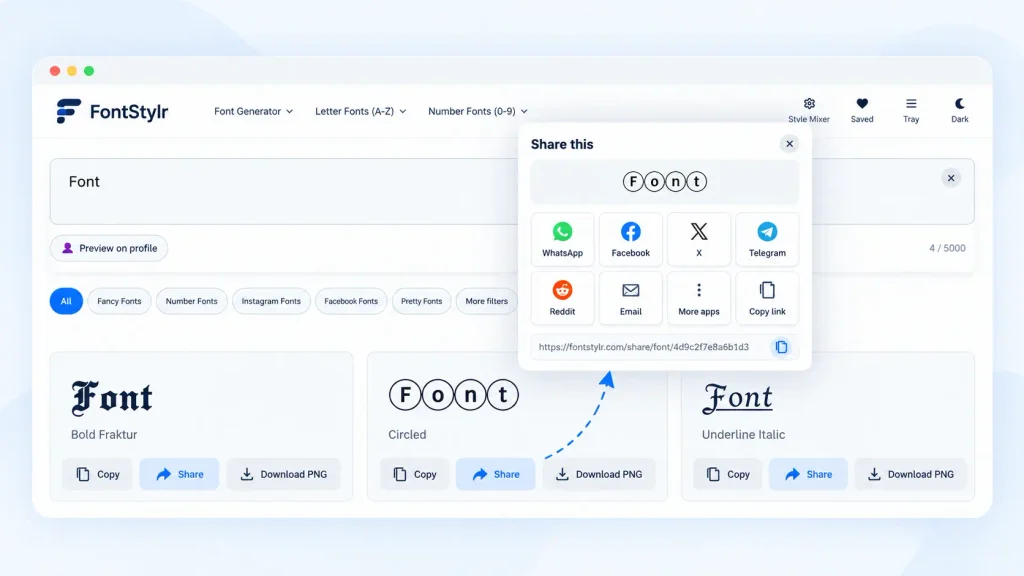
Copy, Share, and Download PNG
Copy your generated text and paste it into compatible apps, websites, and social media profiles. Share your results with others through a shareable link, or download your favorite text design as a PNG image when you want to use it as a visual. These options make it easy to reuse your text in the format that suits your needs.
Filters, Sorting, and Display Options
Use filters to narrow down the available text styles and sorting options to browse them in your preferred order. These controls make it easier to find styles that match what you are looking for without browsing every option. You can also switch between dark and light mode to choose the interface appearance you prefer while using FontStylr.